Guides
Character swap prompt guide for AI video
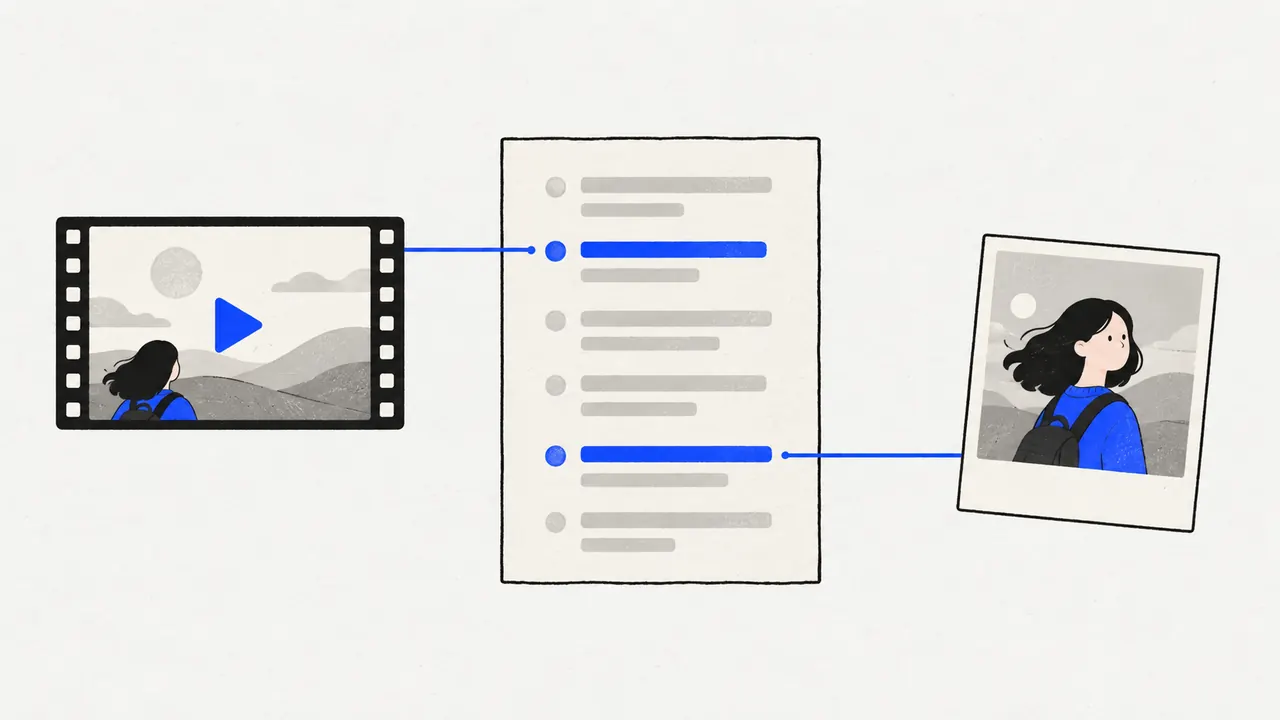
A character swap prompt does three jobs: it names the clip and each photo by number (Video1, Image1), says which character in the clip changes and into whom, and lists everything that must stay: the moves, the camera, the cuts, the background and the other people. The character swap prompt templates below follow the structure Clone Cut AI uses when it writes the character swap prompt from your taps, so in our studio you never type one; in other tools you can paste and edit them.
Updated
All guidesVideo to clone
Your photo
A clear photo of you, face to the camera. Putting in more people? Add one photo each, up to 9.
Settings
- Clothes
- Sound
Default · Re-shoots the scene
Clone Cut AI in action
Wan 3.0
Same moves, a new person
Trending videos for Clone Cut AI
Tap a video to use it in Clone Cut AI, then add your photo.
They come from public posts; to have one removed, use the takedown page.
How a character swap prompt is built
- Open with the task, "Character swap", then name the references: the clip is Video1, the photos are Image1, Image2 in upload order.
- Point at the character in the clip by place and look: "the character on the left in Video1 (black top)".
- Say what comes from the photo: face, hair, skin tone and build, "from the first frame to the last".
- Choose the clothes: the photo’s, or the clip’s with only the person changed.
- List what stays: framing, cuts, timing, every move and lip movement, camera, background, everyone else.
- Close the doors: no split screen, no extra people, no new text, ignore the photo’s background.
Character swap prompt templates to copy
Character swap prompt: one person, the photo’s clothes Character swap. Follow Video1 for the whole clip: same framing, cuts, timing, moves, expressions and lip movement, same camera, no zoom or pan, same background. The character in Video1 becomes the person in Image1: face, hair, skin tone and build from Image1, from the first frame to the last, wearing the clothes from Image1. Ignore the photo’s background. No split screen, no extra people, no new text.
Character swap prompt: keep the clip’s clothes Character swap. Follow Video1 for the whole clip: same framing, cuts, timing, moves and camera, same background. The character in Video1 becomes the person in Image1: face, hair, skin tone and build from Image1, from the first frame to the last. Keep the clothes from Video1; only the person changes. No split screen, no extra people, no new text.
Character swap prompt: two people Character swap. Follow Video1 for the whole clip: same framing, cuts, timing, moves and camera, same background. The character on the left in Video1 becomes the person in Image1; the character on the right becomes the person in Image2. Each keeps the face, hair, skin tone and build of their photo from the first frame to the last. Ignore the photos’ backgrounds. No split screen, no extra people, no new text.
Character swap prompt: one of three Character swap. Follow Video1 for the whole clip: same framing, cuts, timing, moves and camera. Only the character in the middle of Video1 becomes the person in Image1, from the first frame to the last. Every other character in Video1 stays exactly as they are. No split screen, no extra people, no new text.
Character swap prompt: edit mode Character swap. Edit Video1 and replace only the character: keep its framing, cuts, timing, camera, moves, expressions and lip movement, and its background. The character in Video1 is replaced by the person in Image1, from the first frame to the last. No split screen, no extra people, no new text.
How each model reads a character swap prompt
Numbers follow upload order: the first photo is Image1. Edit-mode models change your clip itself, so the character swap prompt says "edit" or "replace"; the others re-shoot the scene, so the character swap prompt must ask for the same camera and moves.
| Model | How it works | Clip and photos in the prompt |
|---|---|---|
| Wan 3.0 | Re-shoots the scene | Video1, Image1, Image2 |
| Seedance 2.5 | Edits the clip itself | numbered references: video 1, image 1 |
| Seedance 2.0 | Re-shoots the scene | numbered references: video 1, image 1 |
| Kling 3.0 | Edits the clip itself | the clip is the base video; photos as <<<image_1>>> |
| MiniMax H3 | Re-shoots the scene | numbered references: video 1, image 1 |
Words that keep a character swap stable
- "From the first frame to the last": without it, the new face can drift back halfway.
- "No zoom or pan": re-shooting models like to add a camera move of their own.
- "Ignore the photo’s background": or the room from your selfie leaks into the character swap.
- "Every other character stays as they are": or the model swaps every face it sees.
- "No new text": models copy captions they half see and invent new ones.
Why a character swap prompt fails
- It describes the new face ("a blonde woman") instead of the character in the clip. Describe who is in the clip; the photo carries the new look.
- Two swaps in one sentence. Write one sentence per character.
- Many fast cuts. No character swap prompt fixes a character whose face is on screen for half a second.
- A photo with two people. The model cannot tell which one you mean; use one person per photo.
Try Capafy AI with one photo
Open the studioFAQ
Questions and answers
Do I need to write a character swap prompt in Clone Cut AI?
No. You tap who to replace and pick the clothes; the studio writes the character swap prompt for the model you choose.
Can I use these character swap prompt templates in other tools?
Yes. They are plain text written by us; any video model that takes a reference video and photos can read a character swap prompt like these. Results vary by model.
Should a character swap prompt describe the new person’s face?
Rarely. The photo carries the face. Describe the character in the clip (place, clothes) so the model knows whom to replace.