Guides
How to replace a person in a video with AI
To replace a person in a video with AI, give a video model the clip and a photo of the new person, and tell it which person to swap and what to keep. In Capafy AI that is Clone Cut AI: upload a 2 to 30 s video, add one photo per new person and tap who to replace; the model keeps the moves, the cuts, the camera and the original sound. Finding the people in the video is free, and a 10 s clip at 480p on Wan 3.0 is 168 credits.
Updated
All guidesVideo to clone
Your photo
A clear photo of you, face to the camera. Putting in more people? Add one photo each, up to 9.
Settings
- Clothes
- Sound
Default · Re-shoots the scene
Clone Cut AI in action
Wan 3.0
Same moves, a new person
Trending videos for Clone Cut AI
Tap a video to use it in Clone Cut AI, then add your photo.
They come from public posts; to have one removed, use the takedown page.
Replace a person in a video in three steps
- 1
Upload the video: an MP4 or MOV file of 2 to 30 s, up to 50 MB, that you have the right to use.
- 2
Add a photo of each new person, 9 at most. The studio watches the video once and finds the people in it, for free.
- 3
Check who becomes you: the main person in the video is picked for you, and a tap on another face changes it. Clothes, sound, model and quality have defaults under Settings. Then create the new video.
What changes and what stays when you replace a person
- Changes: the face, hair, skin tone and build of each person you tap, and their clothes if you choose the photo’s.
- Stays: every move, gesture and lip movement, the cuts and the timing, the camera angle and its moves.
- Stays: the background, the light, the objects and everyone you did not tap.
- Stays: the sound of your clip, laid back over the new video after the render, unless you let the model make its own.
The clip that works best to replace a person in a video
- Short: 5 to 10 s with one shot or few cuts. Every cut is a new moment the model must match.
- The person is clearly visible: not tiny in the distance, not hidden behind others or objects.
- Filmed at 24 to 60 frames per second, which is what phones record.
- About 720p or smaller if you want Seedance 2.0; the other models take a 1080p phone clip.
The photo of the new person
- One person per photo, face to the camera, no sunglasses or hat shadow.
- A full-body photo when the video shows the whole body, a half-body one for a talking video.
- Light that looks like the video’s: daylight with daylight, a dim room with a dim room.
- Someone who agreed to be in the result. No children, no public figures.
Replace a person or swap a face?
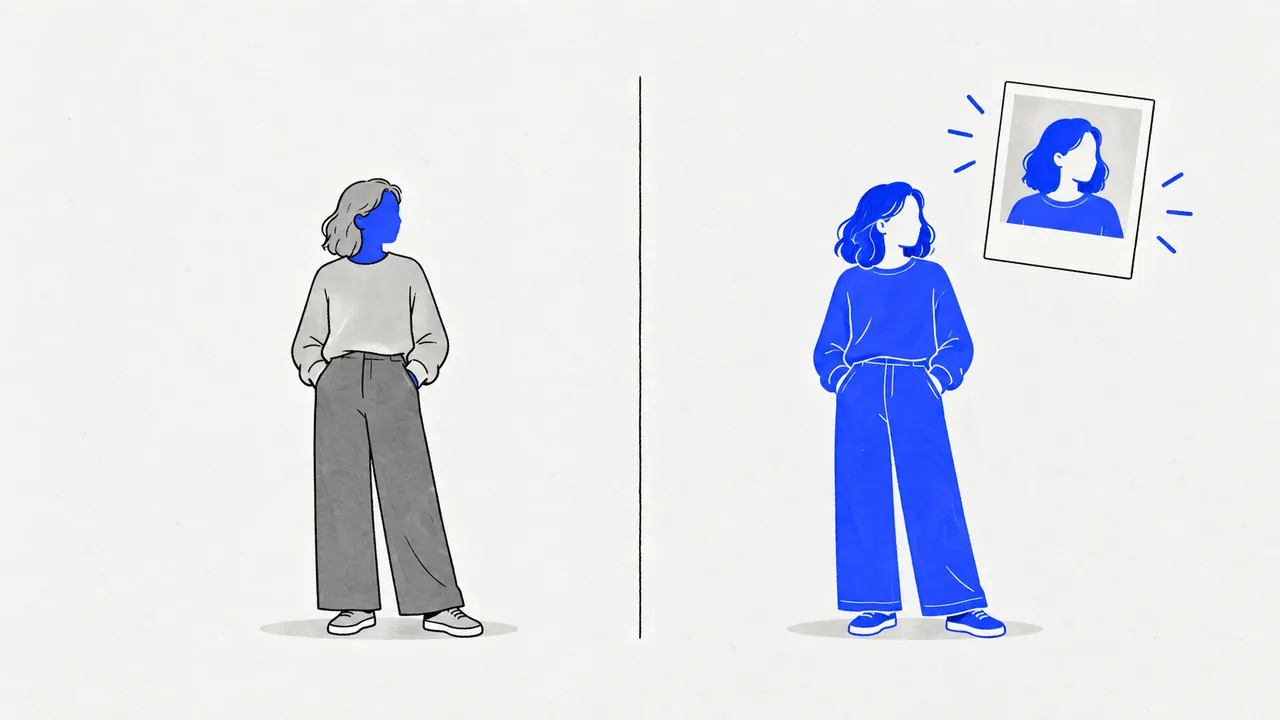
A face swap pastes a new face over the old one and leaves the hair, the body and the clothes as they were. Replacing the person, as Clone Cut AI does, redraws the whole person from the photo and keeps only the motion of the video.
| Face swap | Replace the person | |
|---|---|---|
| Face | New | New |
| Hair, skin tone, build | Old | New |
| Clothes | Old | New or old, your choice |
| Moves, cuts, camera | Old | Old |
Which model to use to replace a person in a video
Wan 3.0 is the default. The studio greys out any model your clip does not fit and says why, so you never pay for a request that cannot run.
| Model | Your clip | How it works |
|---|---|---|
| Wan 3.0 | 2 to 15 s | Re-shoots the scene |
| Seedance 2.5 | 4 to 30 s | Edits the clip itself |
| Seedance 2.0 | 2 to 15 s, about 720p or smaller | Re-shoots the scene |
| Kling 3.0 | 3 to 10 s | Edits the clip itself |
| MiniMax H3 | 2 to 15 s | Re-shoots the scene |
Fix the usual problems
- The wrong person was swapped: tap the right face in "Who to replace"; the plan shows who becomes whom before you pay.
- The face drifts during the video: use a sharper, front-facing photo, or a shorter clip with fewer cuts.
- Extra people or new text appear: keep the default plan, which tells the model not to add people, captions or split screens.
- The model is greyed out: your clip is too long, too short or too sharp for it; pick another model or trim the clip.
- A render fails: its credits come back to your balance by themselves.
Do you have the right to replace a person in that video?
Only replace people in a video you filmed, licensed or have the owner’s permission for, and only with photos of people who agreed. A viral clip from someone else’s account is not yours to reuse. No children, no public figures. To have a clip removed from this site, use the takedown page.
Try Capafy AI with one photo
Open the studioFAQ
Questions and answers
Can I replace a person in a video for free?
Finding the people in the video is free, 20 scans a day. The new video costs credits, shown on the button first: 168 for a 10 s clip at 480p on Wan 3.0. Failed renders are refunded.
How do I replace a person in a video with another person?
Add a photo of the other person, tap the one they replace, and create. Everyone you do not tap stays as they are.
Can AI replace a face in a video?
Yes, and Clone Cut AI goes further: it replaces the whole person in the video, face included, so the hair, skin tone and build match the photo too. To keep the clothes the person wears in the video, choose "Keep the video’s" clothes in the plan.
Can I replace a person in a video on my phone?
Yes. The studio runs in a phone browser, with no app: upload the clip from your camera roll and sign in with Google.
How long does it take to replace a person in a video?
Finding the people takes under a minute; the new video about 5 to 6 minutes, depending on the model.